
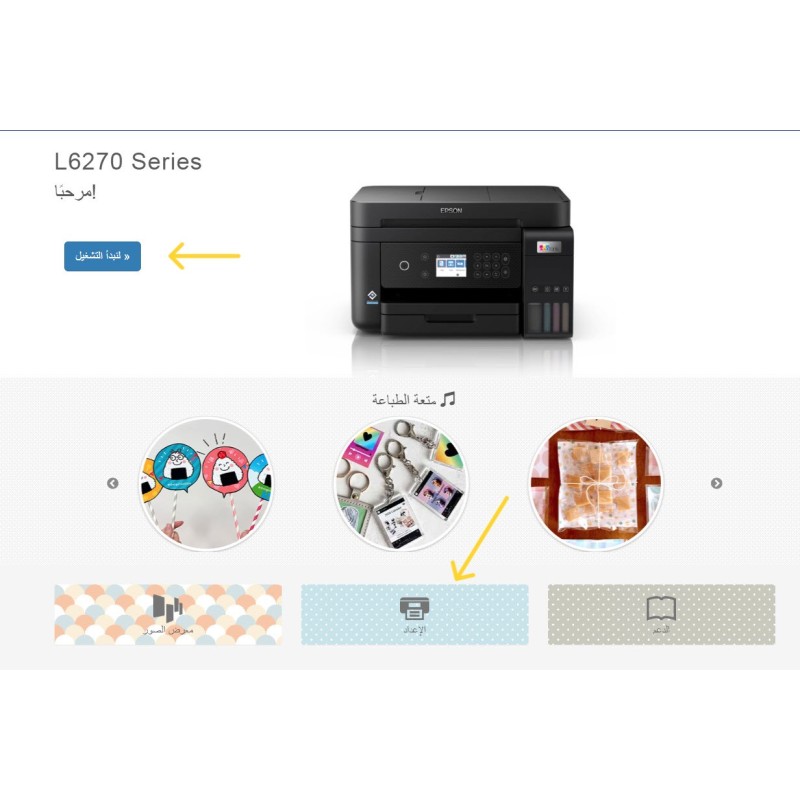
Download and install the Epson printer software from the official website (with images)
How to download your printer driver from the Epson website – step by step
If you want to download your printer driver from Epson correctly and safely, follow these steps in detail to ensure the correct driver is installed for your device.
Printer search
Log in to the platform, then use the search icon at the top of the page to find your printer, or click here to view all Epson printer software.
Printer model entry
In the search box, enter the printer model number exactly.
For example: L3250
⚠️ Make sure you enter the model number exactly as it appears on the printer label to avoid selecting the wrong model.
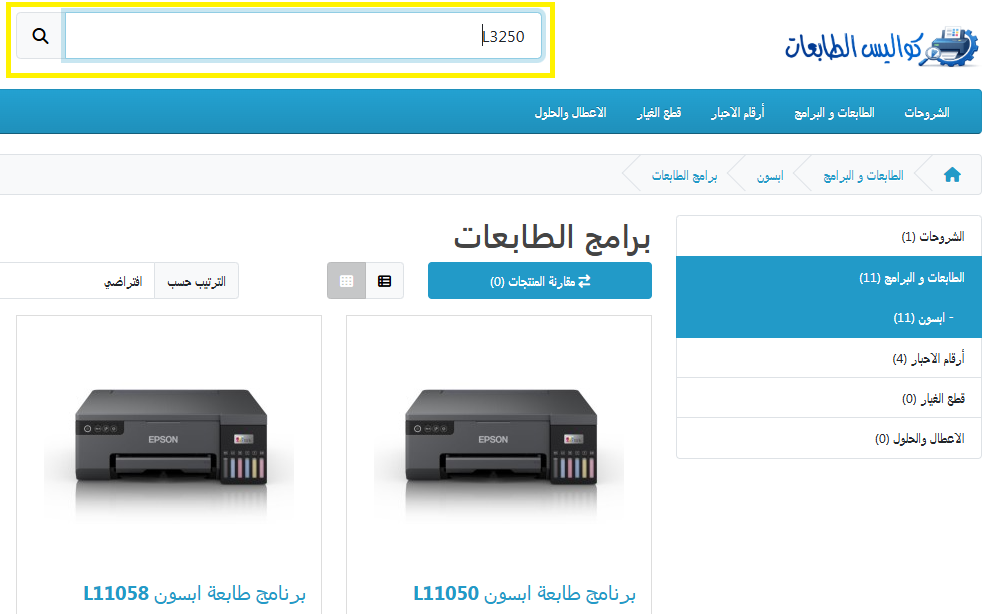
Choosing the right printer
After the search results appear, click on the printer name that exactly matches your device model to open its page.
Scroll to the bottom of the page
Scroll to the bottom of the printer page, and you will find a link to download the driver.
Click it to go to the official Epson website.
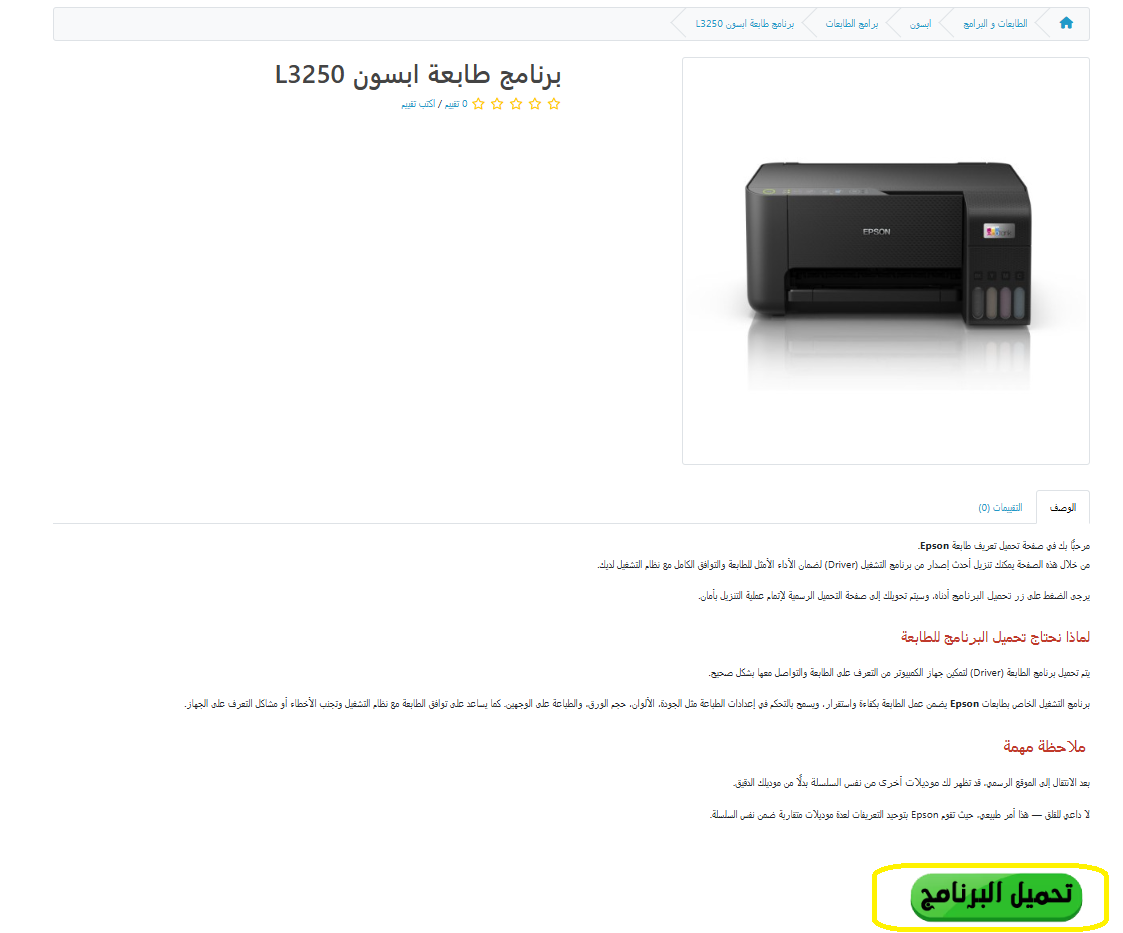
Important note
After visiting the official website, you might see other models from the same series instead of your exact model.
Don't worry—this is normal, as Epson standardizes drivers for several similar models within the same series.
Click on the settings icon
Press the "Setup" or "Start" button to begin the setup process and download the required files.
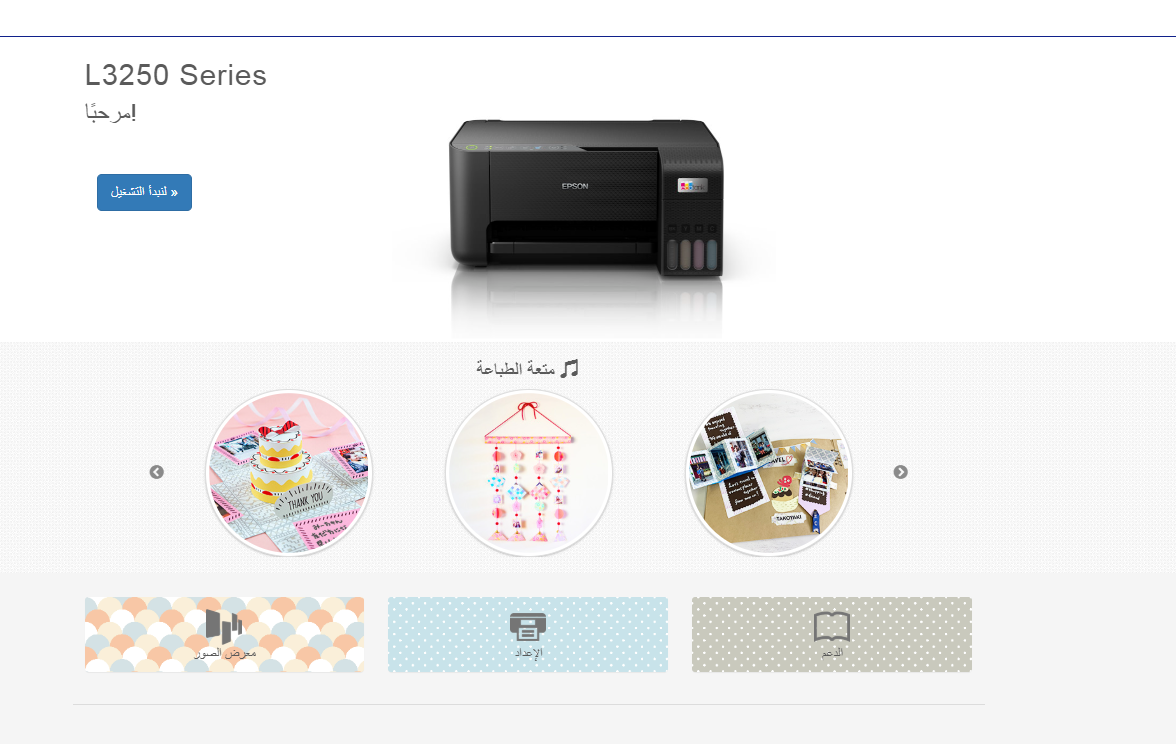
Select step number 2 from the setup guide
You will see a guide with 3 main steps.
To download the printer driver, go to:
👉 Step 2
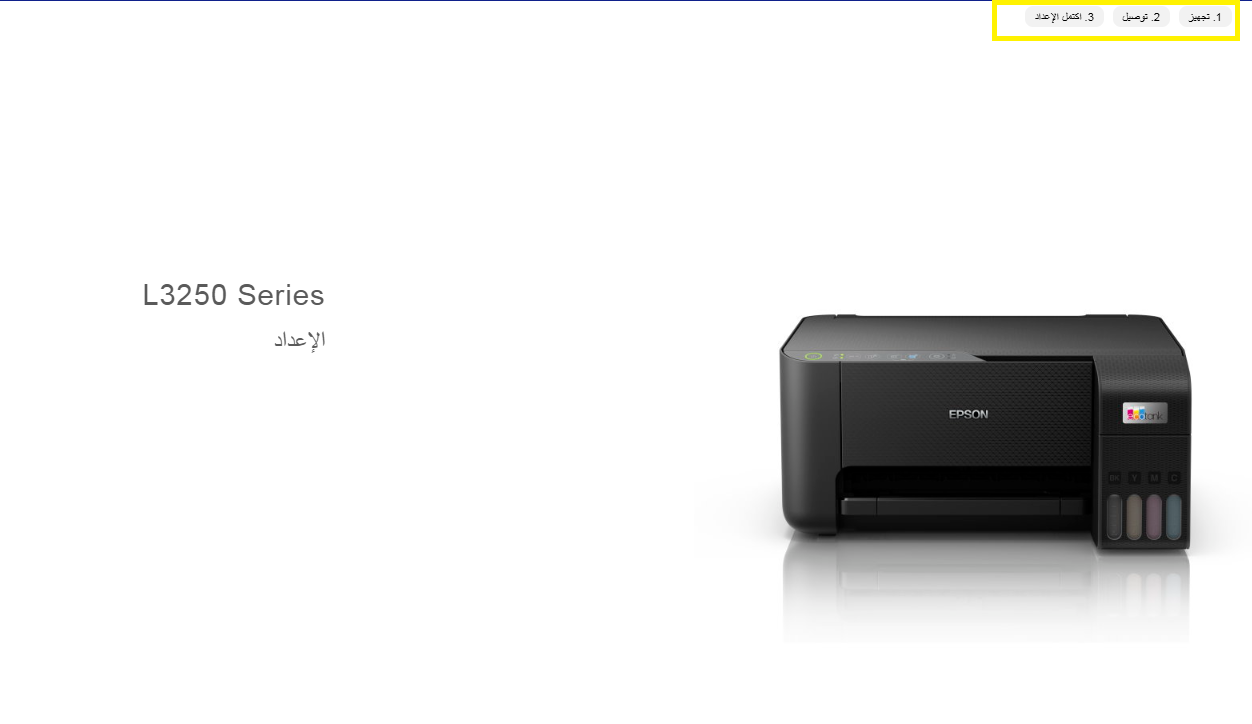
Download the program
Click the "Download" button to begin downloading the printer software or driver package appropriate for your operating system.
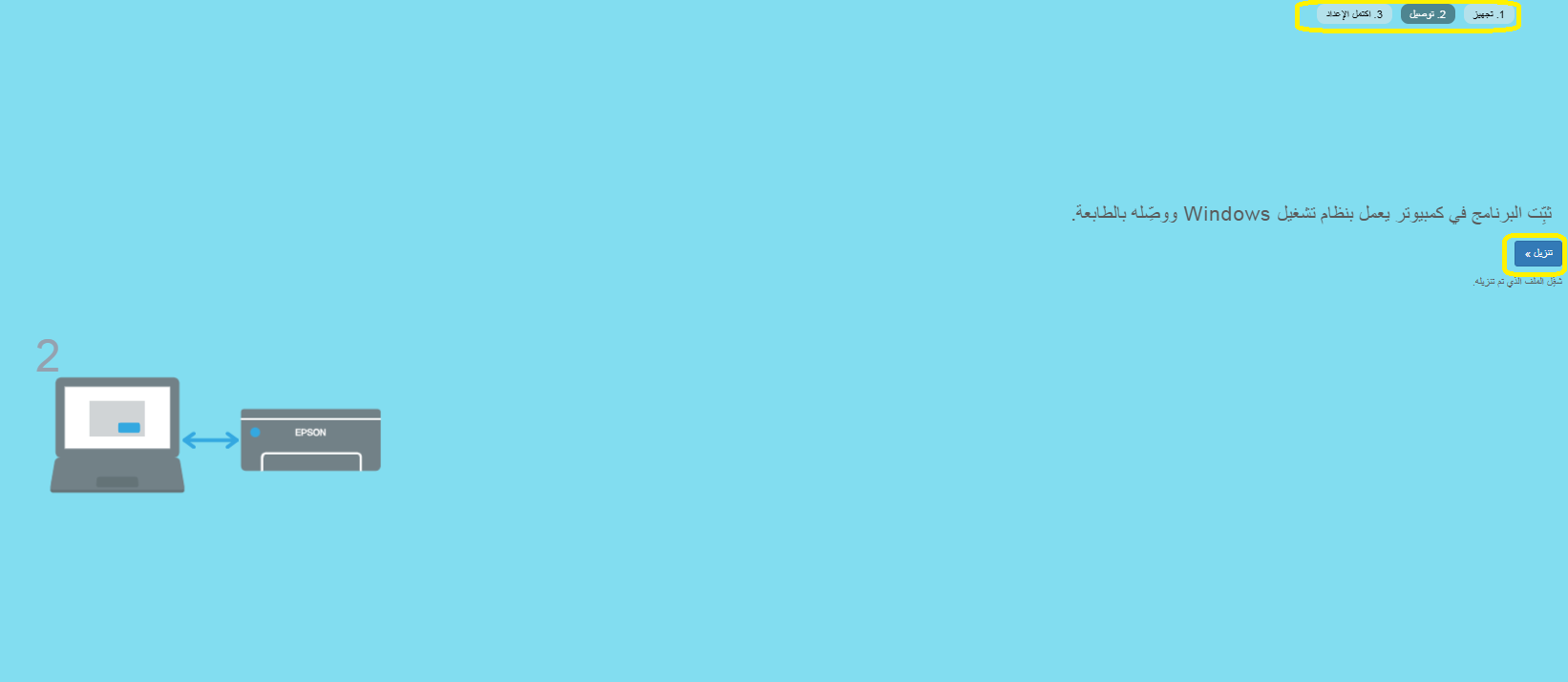
Open the installation file
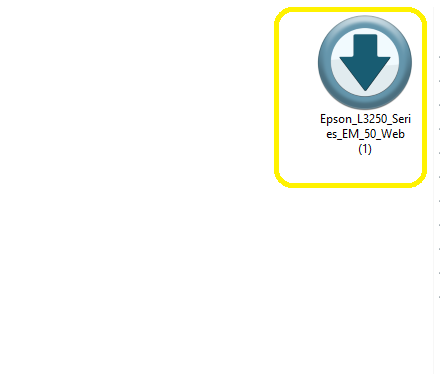
After the download is complete:
Go to the Downloads folder on your device.
You will find the installation file in the following formats:
EXE for Windows
DMG for macOS
Click the file to begin the installation.
Follow the on-screen installation instructions until completion.
Important tips to ensure successful installation
Make sure you select the correct operating system before downloading (Windows 10, Windows 11, macOS, etc.).
Close any other programs during installation.
Do not disconnect the printer during the installation process.