
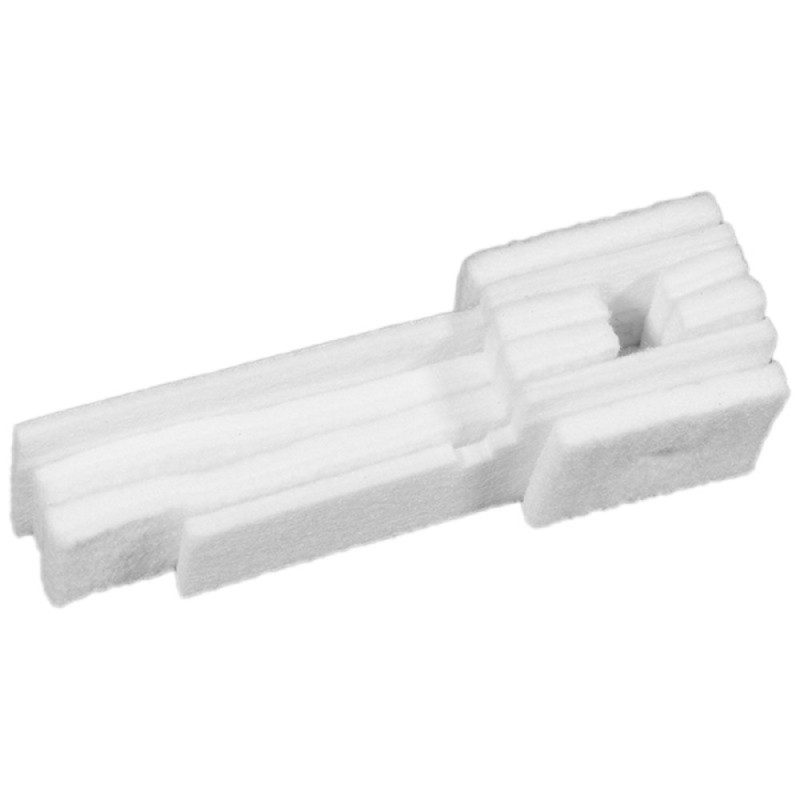
Solving the problem of the Epson L382 printer sponge being full and how to reset it
Resetting the L382 Printer – The Complete Solution to the "Service Required" Error
A full ink pad is one of the most common problems with Epson printers, especially the Epson EcoTank L382 and some other models.
When the pad reaches its maximum capacity, the printer stops working and displays an error message requesting maintenance.
In this guide, we will explain the cause of the problem and how to reset the Epson L382 printer's waste ink pad step by step so that the printer can work again.
What is a Printer Waste Ink Pad?
The printer waste ink pad is an internal component designed to absorb excess ink resulting from printhead cleaning and automatic maintenance.
When the printer performs operations such as:
Printhead cleaning
First printer startup
Routine maintenance
Some ink is ejected into the waste ink pad, causing it to gradually fill up over time.
Why does the "Service Required" message appear?
The Epson EcoTank L382 printer has an electronic counter that measures the amount of ink absorbed by the sponge.
When this counter reaches the limit specified by Epson, the following message appears:
Service Required
or
Parts inside your printer are at the end of their service life
This means the sponge counter has reached its maximum capacity, but it doesn't necessarily mean the sponge is actually full.
How to Reset an Epson L382 Printer
The problem can be easily solved by resetting the sponge counter using maintenance software.
Steps
Download the WIC Reset Utility software to your computer.
Connect the printer to your computer using a USB cable.
Run the software.
Select the Epson L382 printer from the list.
Click on the Waste Ink Counter option.
Enter the reset code.
Restart the printer.
After restarting, the printer will function normally.
Should I Replace the Sponge After Resetting?
In most cases, you don't need to replace the ink pad directly, as the problem is usually with the waste ink counter.
However, if your printer has been used extensively for many years, it's recommended to:
Clean the ink pad
Or replace it
To prevent ink leakage inside the printer.
Tips to prevent the ink pad from filling up quickly
To extend the life of your Epson EcoTank L382 printer and reduce the need for resetting:
Only clean the printhead when necessary.
Use high-quality ink.
Print regularly to prevent printhead clogging.
Note: The problem of the Epson EcoTank L382 printer's ink pad filling up is a common issue with Epson printers, but it's not a serious malfunction.
It can be easily resolved by resetting the Waste Ink Pad counter using the appropriate maintenance software.
This way, the printer can be restarted in just a few minutes without the need for costly repairs.